jabot_fieldbook()Organize field data with the jabotR field notebook
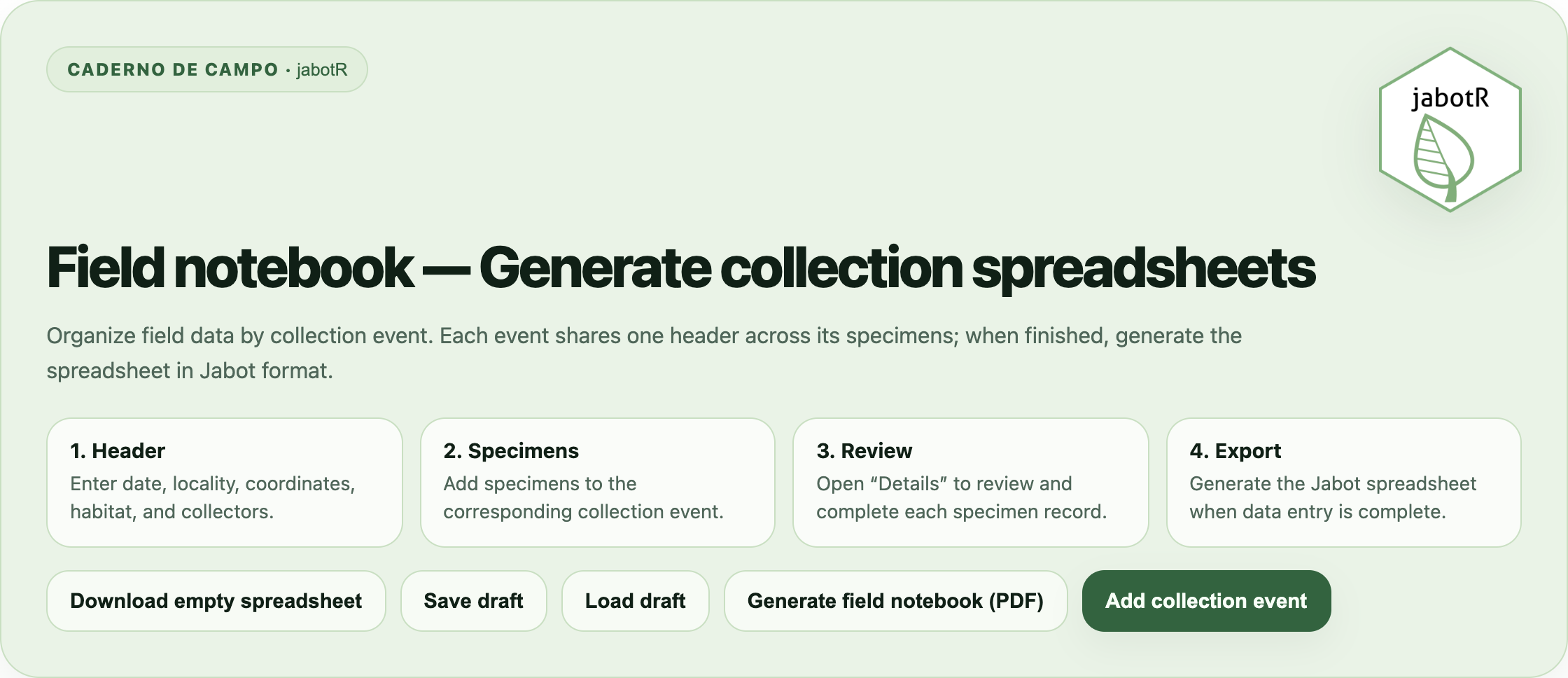
Here we present a complete guide to jabot_fieldbook(), the interactive field notebook distributed with the jabotR package. Unlike the other jabotR functions, which query the JABOT web service, the field notebook is a self-contained tool for organizing new collection data in the field and turning it into a spreadsheet ready for submission to JABOT.
Function Overview
jabot_fieldbook() opens the field notebook, built with plain HTML, CSS and JavaScript, in the user’s default web browser. It runs entirely offline, requires neither Shiny nor an internet connection, and performs all spreadsheet generation locally in the browser — no data ever leaves the user’s computer. The interface is available in Portuguese (the default) and English, with a language switch in the bottom-left corner.
Arguments
| Argument | Description |
|---|---|
browser |
Logical. If TRUE (default), opens the field notebook in the default web browser. If FALSE, the application is not opened and only its local path is returned. |
Opening the Field Notebook
To retrieve the local path to the application (for example, to open it manually or embed it elsewhere) without launching a browser tab:
app_path <- jabot_fieldbook(browser = FALSE)
app_pathHow Data Are Organized
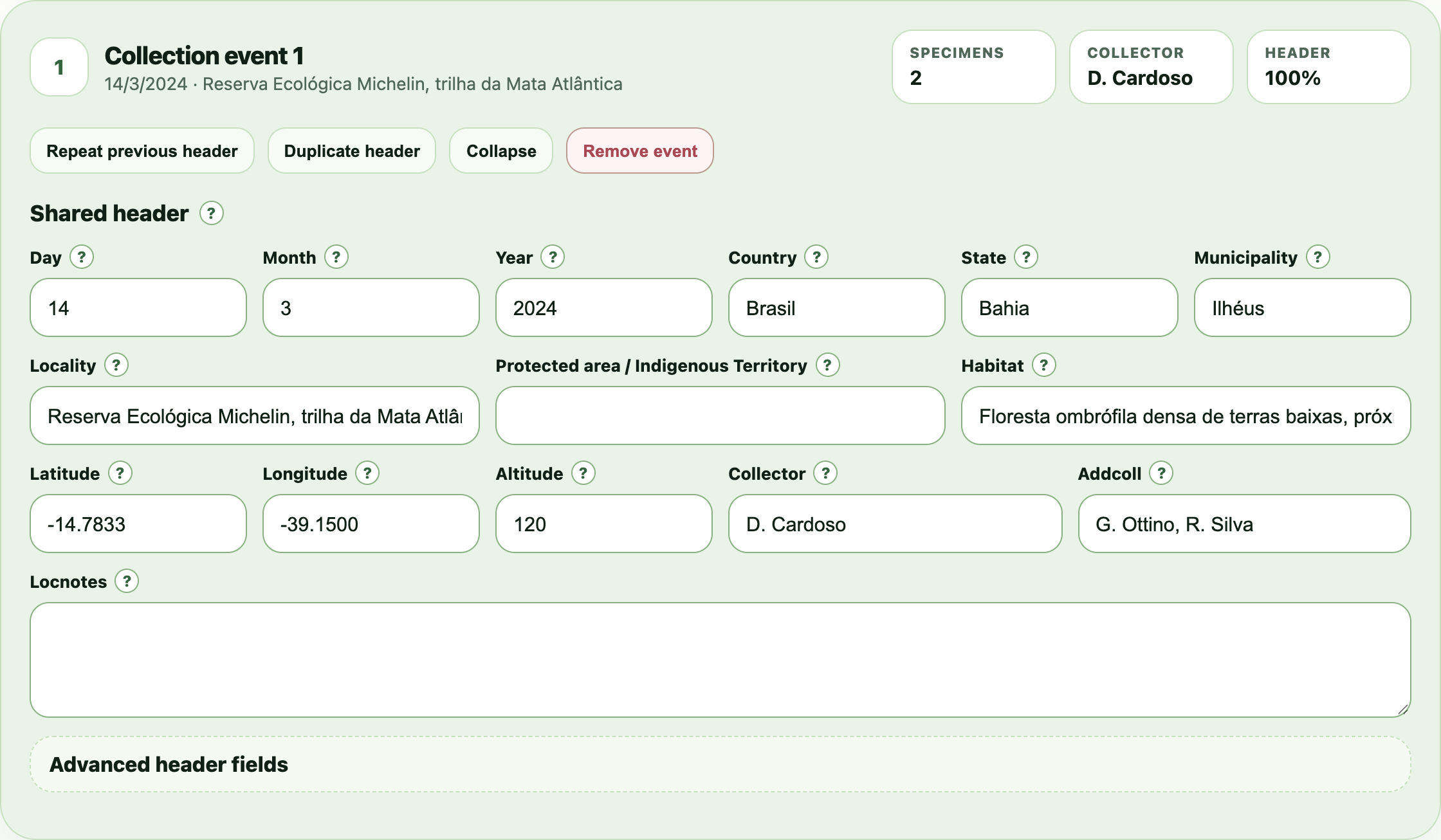
The field notebook is built around collection events. A collection event represents a single collecting date/locality combination — the equivalent of one field-notebook entry — and groups together:
- One shared header, entered once and reused by every specimen collected during that event (date, country, state, municipality, locality, protected area, habitat, coordinates, altitude, and collector information).
- One or more specimens, each with its own taxonomic and specimen-level data (collection number, family, genus, species, determiner, plant description, and other fields).
A running summary at the top of the page reports, in real time, the number of collection events, the number of specimens, the percentage of headers that are complete, and the fixed number of columns (58) in the JABOT spreadsheet format that the tool exports to.
Click Add collection event to start a new event, or use Repeat previous header / Duplicate header inside an existing event to reuse locality and date information across nearby collecting events without retyping it.
Header fields
| Field | Description |
|---|---|
| Day / Month / Year | Collection date. |
| Country, State, Municipality | Political divisions where the collection took place. |
| Locality | Locality within the municipality (farm, river, road, community, etc.). |
| Protected area (UC / TI) | Conservation unit, Indigenous Territory, or other protected area. |
| Habitat | Description of the specimen’s habitat. |
| Latitude / Longitude | Coordinates in decimal degrees. |
| Altitude | Minimum altitude or depth. |
| Collector / Additional collectors | Main collector and any additional collectors. |
| Locality notes | Free-text notes about the collecting locality. |
An Advanced header fields panel exposes further, less frequently needed columns: coordinates split into degrees/minutes/seconds with N/S and E/W hemisphere, maximum altitude and its unit, the source herbarium acronym, duplicate herbaria and their count, and the associated project.
Specimen fields
Each row of the specimen table covers the fields needed for a quick first pass — collection number, family, genus, cf. qualifier, species epithet, determiner, determination date, and a free-text plant description. Column widths can be adjusted directly in the table.

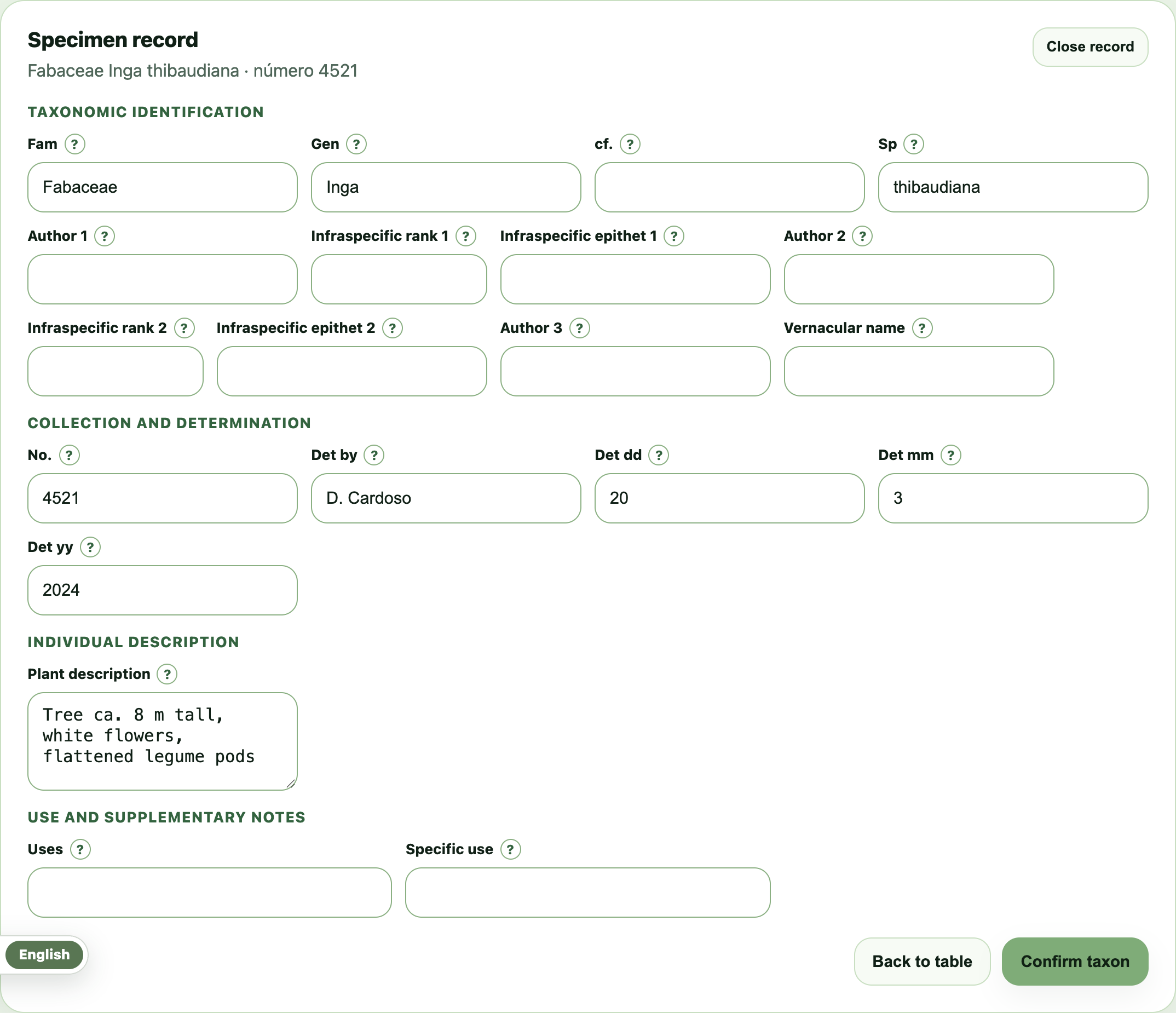
Opening Details on a specimen reveals the complete record, organized into four groups:
| Group | Fields |
|---|---|
| Taxonomic identification | Family, genus, cf., species 1–3 with authors and infraspecific ranks, vernacular name |
| Collection and determination | Number, determiner, determination date |
| Individual description | Plant description |
| Uses and notes | Uses, specific use |
The notebook form shows only the fields most useful in the field. The remaining JABOT columns (typestat, numtombo, sufixo, flor, fruto, fuste, altura, unidmedaltura, habito) are not shown, but they are always included — empty — in the exported JABOT spreadsheet, which keeps its full 58-column layout.
Use Add specimen to add a new row, Duplicate last to copy the previous specimen as a starting point, or Continue number sequence to auto-increment the collection number for a new specimen.
Reviewing Before Export
A validation panel checks the data as it is entered and flags, per collection event, issues such as an incomplete collection date, a missing collector, an event with no specimens, or a specimen missing its collection number or any taxonomic information (at least family, genus, or species). Review the flagged items before exporting; the spreadsheet can still be generated with warnings pending if needed.
Saving and Loading Drafts
- Save draft stores the current state of the notebook in the browser’s local storage, so work in progress is not lost if the tab is closed.
- Load draft restores the most recently saved draft.
Drafts are kept locally in the browser being used and are not synced across devices or browsers — save a draft again after significant changes, and avoid clearing browser site data before exporting.
Exporting
Three export options are available, at the top and bottom of the page:
- Download empty spreadsheet: generates a blank spreadsheet with the 58 JABOT columns and no data, useful as a template or for entering data directly in a spreadsheet application.
- Generate Jabot spreadsheet: exports all completed collection events and specimens as a single spreadsheet in the standard JABOT column layout, ready for submission.
- Generate field notebook (PDF): renders a printable field notebook from the entered data, useful as a physical or archival record of the collecting trip.
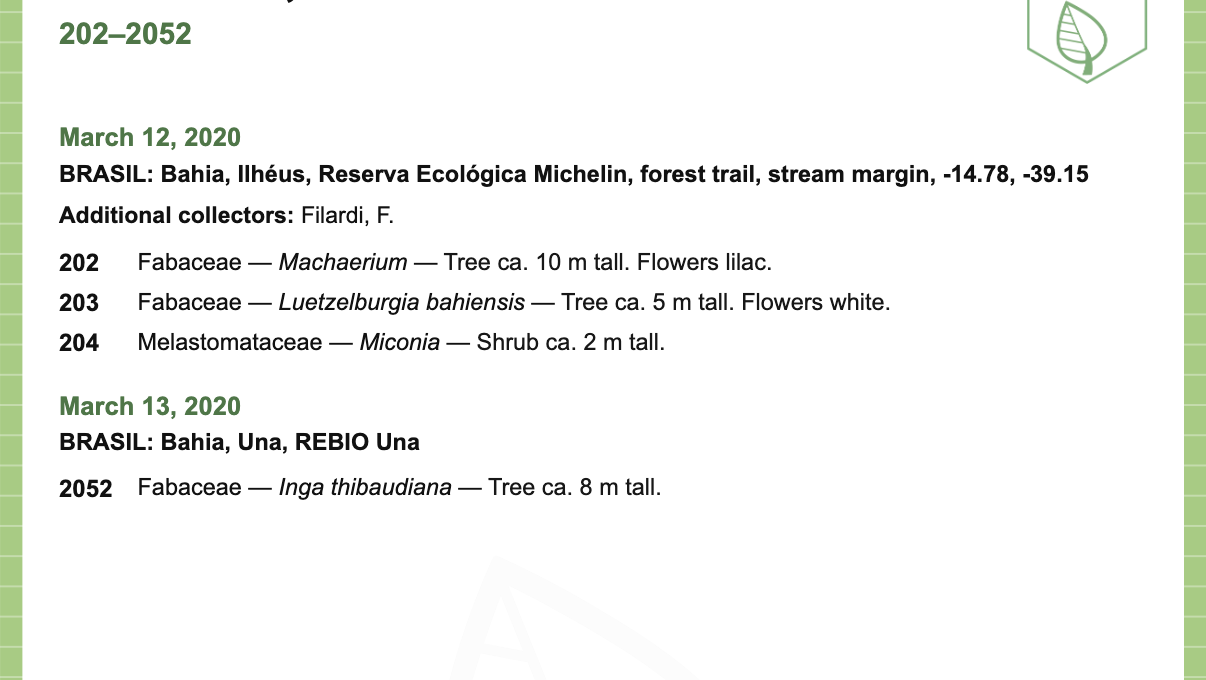
Both products are named automatically from the data: a prefix (jabotsheet_ or fieldbook_), the surname of the first collector entered in the Collector field, and the lowest and highest collection numbers, for example jabotsheet_Cardoso2020-2052.xlsx and fieldbook_Cardoso2020-2052.pdf. For the PDF, this name is suggested in the browser’s print dialog when choosing “Save as PDF”.
The printable field notebook
The PDF opens with the main collector’s name as a large title, with the range of collection numbers below it. Each collecting date follows in green, then one line with the locality in the form COUNTRY: State, Municipality, Locality, protected area, locality notes, habitat, coordinates, and the additional collectors, if any. The collector is not repeated for each event (only if it differs from the main collector). Each specimen is a single line: collection number, family, scientific name (in italics) and the plant description, followed by any other information entered for the specimen, such as vernacular name, uses and specific use.
Additional Tips
- Fill in the header of a collection event first, then add its specimens — shared header fields are copied automatically to every specimen in that event when the spreadsheet is generated.
- Use Repeat previous header when starting a new event at the same locality and date as the previous one (e.g., several specimens collected together but logged as separate events).
- Save a draft periodically, particularly during long field sessions, since the field notebook keeps no server-side copy of the data.
- The field notebook works fully offline, so it can be used directly in the field on a laptop with no signal; only exporting figures/spreadsheets requires no additional steps once back online.
See Also
jabot_records(): Retrieve and filter existing JABOT specimen recordsjabot_summary(): Get a summary of JABOT collections